Project Vision
Keep the jobsite story with the job.
Project Vision connects contractor photos, videos, PDFs, field details, and customer communication to the Production Project and Work Order. Keep the work documented from the first visit through milestones and closeout.
Who this is for: Contractor owners, project managers, field crews, and office teams that need jobsite documentation connected to the work.
Comparing Project Vision and CompanyCam?Production project · WO-1042
Maple Street roof replacement
Jordan Miller · In progress
01 / Capture the detail
Show exactly what needs attention.
Open the project on site, capture the condition, and mark the detail while it is in front of you. Draw, circle, or add an arrow before saving the photo with the work.
A flashing detail is easier to explain when the whole team can see it. Native photo markup keeps that explanation with the capture.
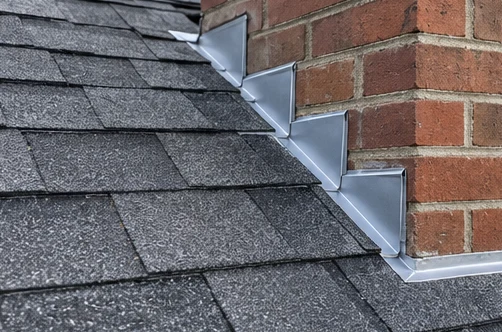 New chimney flashing
From the field
A detail the office can act on.
Alex Rivera added a photo with the flashing edge marked for review.
Field evidence stays with the project.02 / Organize the evidence
Find the right photo when it matters.
Follow one job from Before to Progress to After. Choose a phase, filter a tag, or open a photo to keep its description and project context in view.
Production project · WO-1042
Maple Street roof replacement
Jordan Miller · In progress
03 / Answer with context
A homeowner question. The photo behind it.
Publish the project update you want to share. The homeowner can ask about a specific image, and your team can respond with the work in view.
Internal documentation stays separate from customer updates. Your team reviews visibility and publication before the customer sees an image.
See customer communication in a demoJordan Miller's project
Maple Street roof replacement
About this photo
04 / Give the next step an owner
Turn project context into assigned work.
Keep project notes, activity, and tasks beside the documentation. Assign the follow-up to a teammate, give it a due date, and retain a photo of the completed detail.
Check chimney flashing
Review the upper edge and add a completion photo before closeout.
Referenced project photo05 / Finish with the record complete
Carry the documented job through closeout.
Review the finished work, complete the closeout items, and keep the signed document with the same project. The office has the evidence behind the handoff.
- Review the completion photos
- Confirm the closeout checklist
- Keep the signature and signed PDF
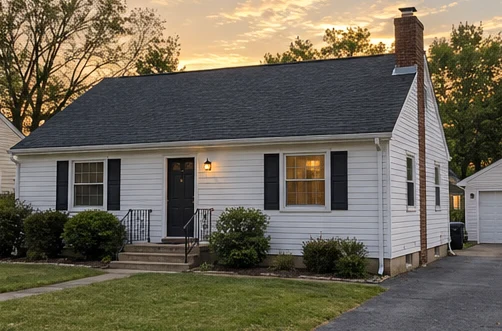
Ready for the next chapter.
Maple Street roof replacement · WO-1042
Project closeout
Every detail, documented.
- Final walkthrough completed
- Completion photographs attached
- Project tasks reviewed
- Closeout form signed
A few useful answers
Fit Project Vision into your workflow.
Evaluating Project Vision as a CompanyCam alternative?
CompanyCam describes photo documentation, project collaboration, integrations, and advanced workflow tools. Project Vision brings photos, videos, PDFs, and field documentation into HomeVision Work Orders and Production Projects, beside milestones, tasks, customer conversations, and closeout.
Compare your capture-to-closeout process, team roles, customer visibility, and the specific tools and plans your business needs.
Comparison context: October 2026. CompanyCam descriptions reference its official features and advanced features pages.
Capture, sharing, and offline questions
Native photo capture supports freehand drawing, circles, and arrows. Organize photos, videos, and PDFs by phase, descriptions, and photo tags.
Keep internal-only and customer-eligible documentation separate. Review customer updates and permissions before sharing.
The native app retains captures and queues uploads while offline. Reopen or keep the app active when connected to continue syncing; completed uploads are confirmed before local cleanup.
Related modules
Keep the next part of the job connected.
Bring your photo documentation workflow into HomeVision
Walk through Project Vision with the jobs and handoffs that matter to your team.